That of course isn’t set in stone but thanks to the success of the original Nexus 7, it would be shocking to see Google pass up the opportunity to release another 7-inch tablet.

Wednesday, 12 June 2013


PlayStation 4 Hard Drive is User Replaceable
Every PlayStation 4 console will ship with a 500GB hard drive built-in, but gamers who want or need more storage have the option to replace the hard drive.
Sony told Polygon that gamers can swap out the hard drive in the PlayStation 4, just like they could with the PlayStation 3. Sony’s current console uses a 2.5-inch hard drive, the same sized used in laptops, that users can replace at will. Presumably the PlayStation 4 will use similar hard drive discs.

By giving gamers the option to replace the hard drive in the console Sony lets gamers put larger hard drive in the console for those who want to store many digital ames on their console at once. Those who can afford the drives can put 1TB or larger drives into the console.
Drives with 1TB of storage start at about $110 on NewEgg, so for about the same the price of an Xbox One gamers can have a PlayStation 4 with twice the storage space.
Gamers should also have no trouble installing solid state drives (SSDs) for much faster performance. SSDs are more expensive than their spinning-disc brethren for less storage. The increase in speed is likely enough to convince some gamers to swap out the 500GB hard drive for an SSD.
For it’s part, Microsoft will let gamers replace the hard drive in the Xbox One, but users have to use Microsoft’s proprietary hard drives in the console. Gamers who want more storage space on their drive have to wait for Microsoft to release a larger proprietary hard drive they want.
Microsoft’s plan for the Xbox One is the same as it’s hard drive options for the Xbox 360. Upgrading an Xbox hard drive is quite easy, but users pay extra for the added convenience and fewer choices.
Most gamers will never replace the hard drive in their console, but Sony’s news is good news for those who want to or have to because of a hard drive failure.
Gameloft’s Asphalt 8 Coming To iPhone & Android
The latest entry into Gameloft’s popular franchise Asphalt 8 will let players drive a variety of cars through racetracks across the globe. The game will feature eight entirely new maps including tracks in the Nevada desert and the streets of London. The popular Monaco track from Asphalt 7 will also return with a few changes.
Asphalt 8 will introduce new weather effects across all tracks including rain, ice, snow and dust. To use Gameloft’s examples, players will hydroplane across puddles after a huge rain storm in Tokyo or slide across ice in the frigid streets of Finland.
Like previous games in the series, Asphalt 8 tracks will have several shortcuts scattered throughout so the weather effects may help players stumble upon faster routes through the race.
iPhone Thieves Will See After the iOS 7 Release
Apple announced a new iOS 7 feature design to stop iPhone theft by locking the iPhone and iPad to a user account. This isn’t the kill switch that police and legislators called for, but it is a good start to discouraging iPhone theft.
iOS 7 will now ask if a computer should be trusted when plugged in for the first time and if a user attempts to restore the iPhone while Find My iPhone is on it will fail.
With these iOS 7 restrictions in place thieves will no longer be able to steal an iPhone, wipe it clean and resell it. As long as no one finds a work around, this could significantly reduce the demand for a stolen iPhone.
If there is no way to wipe it clean, it will prove difficult to sell the used iPhone, at least to some one who wants to use it again. In theory the iPhone could still be broken down for parts, but iPhone thefts reportedly often end up resold in specific neighborhoods or shipped overseas.
When plugging an iPhone running the iOS 7 beta into a new Mac, the iPhone popped up the message below, asking if it can trust this computer. If the iPhone is locked it will require a user to unlock it before this happens. Even if users don’t lock their iPhone, they will be able to use Find My iPhone to lock it after it is lost or stolen.

Even if the thief is able to connect a stolen iPhone to a computer before it is locked and click Trust, iTunes will not restore the iPhone if Find My iPhone is turned on. This should make it impossible to restore the stolen iPhone to stock and sell it to someone else.

If we can’t stop iPhone theft with officer deterrents and educating users about the dangers of walking down the street holding a gadget worth $600 in their hand, hitting the secondary market could be the best way to limit iPhone theft.
Apple announced many iOS 7 features at the WWDC 2013 Keynote this week, including a complete overhaul to the look of the iPhone user experience and 50 iOS 7 features you’ll actually use. The iOS 7 release date is set for fall, when it will arrive on the iPhone 5, iPhone 4S and iPhone 4 as well as recent iPad models. Users can get the iOS 7 beta today, if they are ok with some possible hiccups.
iOS 7 Beta Per-App Cellular Data Usage, Live Clock Icon, Panoramic Wallpaper and More
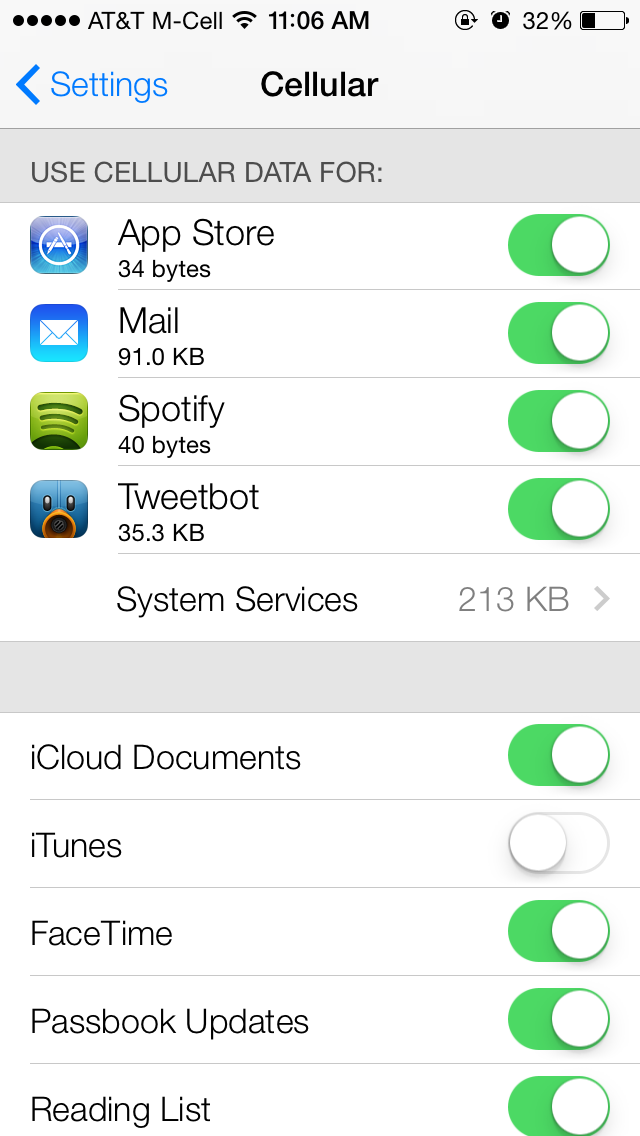 While the most obvious change in iOS 7 is the look and feel of the user interface, Apple's engineers have packed the update with numerous changes both big and small.
Here are a selection of changes noticed by folks in the MacRumors Forums and elsewhere.
Cellular Data Tracking by App - In Settings / Cellular, users can track cellular data usage on a per-app basis. Apps can have their cellular data access disabled individually as well.
Update Apps Manually - The App Store now updates apps automatically, but for users who prefer to handle things themselves, automatic updates can be disabled via a slider in Settings / iTunes & App Stores.
How to Get to Spotlight - Spotlight is now accessible from the home screen by swiping down from the middle of the screen. Additionally, in Settings / General / Spotlight Search, users can manually turn search result categories on and off, as well as change the order results are presented in.
Live Clock Icon - The clock icon provides the correct time, including a live second hand. The weather app does not update -- it is always partly cloudy.
Newsstand Has Permanent Icon - Newsstand's icon remains the same regardless of what publications are inside it. The app itself works similarly, though the design is substantially different. Newsstand can now be put inside a folder as well.
App Permission for Microphone Access - Apps are now required to ask permission to access the microphone, similar to how apps currently ask to access location data or the camera.
Multitasking Switcher Works in Landscape - The app switcher works in landscape mode. Double-tap the home button to access. Control Center can also be used in landscape. Apps can also be manually quit by swiping up, and multiple apps can be closedat the same time.

Skips in iTunes Radio - iTunes Radio listeners get 6 skips per station, regardless of if they are on the ad-supported or ad-free versions of the service. It is believed that the skips reset each hour.
Parallax Everywhere - As part of the new 'layers' user interface that Jony Ive has built, nearly everything in the interface subtly shifts to give the UI depth when the phone is moved -- wallpaper, pop-up alerts, notification bubbles and more.
Dynamic Wallpaper - Apple includes two 'dynamic' wallpaper images by default. These images have subtle animated bubble shapes floating around the background. We'll likely hear more about these going forward.
Panoramic Wallpaper - In addition to the dynamic wallpaper, users can also setpanoramic images as wallpaper -- instead of the subtle parallax image shift shown in the keynote, tilting the phone pans around the image. The stuttering in the video below is due to capture method -- on the iPhone, it pans smoothly.
iPhone 4 is Responsive - One forum member who installed iOS 7 on the iPhone 4 said the device was as responsive as under iOS 6, though many of the UI graphics trickery is disabled.
'Mark All' in Mail.app - Users can now mark all messages as read in Mail.app.
Share Passes - Passbook passes can be shared via iMessage or email.
Navigation has Automatic Day/Night Mode - When viewing turn-by-turn directions, Maps automatically switches from day to night mode using both the current time and ambient light sensor to judge which is more appropriate.

Dynamic Font Size - Users can select a system-wide font size for apps that support 'Dynamic Type' in Settings / General / Text Size.
FaceTime Gets Own App - FaceTime has been spun out into its own app on the iPhone. Previously, it was built into the Phone app.
Reminder Alerts Have More Options - Pop-up alerts from the Reminders app now offer options to 'Remind me in 15 minutes', 'Mark as Completed', 'View Reminder', or to simply close the notification.
Opera unveils Mail – a lightweight email client for Windows and OS X
Opera has a very popular browser on both desktop and mobile platforms alike but unlike its biggest rival Google’s Gmail, Opera Mail hasn’t really taken off the ground.

Today Opera announce Opera Mail, which isn’t the mail-providing service but a desktop mail client designed to bring you your emails in a clean and efficient fashion.
Opera Mail has a tabbed interface (much like Yahoo mail), offers a customizable threaded view, which lets you hide selected messages and offers filters and labels.
You can download the new Opera Mail here.

Bing Maps gets 270TB of Bird’s Eye imagery, largest update ever
In an effort to keep competing with Google Maps, Microsoft has updated Bing Maps with nearly 270TB of new Bird’s Eye imagery, which is Bing Maps’ largest Bird’s Eye update ever. Microsoft also expanded its Venue Maps to over 4,700 locations in 59 countries. Venue Maps allow users to see indoor maps of certain buildings.


Microsoft has published a total of 902,826 square miles of Bird’s Eye imagery around the world. This equates to about half a petabyte of data (or 524,288GB). The map below shows where Bird’s Eye updates were made (shown in yellow). As you can see, most of the updates were in the US, with a handful in Europe, and some in Australia and Canada.
As for Venue Maps, these allow you to navigate your way around malls, airports, amusement parks, stadiums, and more on your computer or Windows 8 mobile device. Venue Maps automatically show up when you zoom in while using Bing Maps. Purple and green polygons will appear, and clicking on one will pop out a directory with a full list of points of interest that you can explore from a top-down view.
Microsoft also added a new “Report a problem” feature, which allows you to send in corrections to Venue Maps. Users can simply click on a point of interest and then click on “Report a problem” to correct a Venue Map. From there, you can select whether the location is not there anymore or has incorrect information, and you can add a comment to your report as well.
SOURCE: Bing
Downgrade from the iOS 7 Beta
The iOS 7 beta is out and available for practically anyone to try months ahead of the fall iOS 7 release. While there is officially no way to downgrade from the iOS 7 beta to iOS 6, after running into some issues we’ve discovered how to revert to iOS 6.
Apple doesn’t support this with an easy one click and done downgrade from the iOS 7 beta, but the process is easy to follow.
If you think you will need to downgrade from the iOS 7 beta we recommend not backing up while on iOS 7 to your computer or iCloud. Apple does not let users restore form a backup made on a later version of iOS, which will leave you without a backup and possibly some data.

Downgrade from iOS 7 beta to iOS 6.
If you make a backup before upgrading to the iOS 7 beta, use the beta and then decide to downgrade to iOS 6, you should be ok to restore as long as you didn’t make a new backup.
When downgrading from iOS 7 to iOS 6, users can only downgrade to the current versions, iOS 6.1.3 and iOS 6.1.4. This means there is no way to try the iOS 7 beta and jump back to an iOS 6 jailbreak as there is no iOS 6.1.3 jailbreak or iOS 6.1.4 jailbreak.
How to Downgrade from iOS 7 Beta to iOS 6
To downgrade from the iOS 7 beta to iOS 6 you will need to first download the iOS 6 file for your iPhone. Apple doesn’t offer a direct download to non-developers, but iOSday.com does offer iOS 6.1.3 and iOS 6.1.4 downloads free of charge, and with speedy downloads too.
1. Download the right iOS 6 ipsw file for your iPhone. Check this support page if you need help figuring out which iPhone model you have.
2. Open iTunes. It’s a good idea to be on the latest version of iTunes.
3. Put the iPhone into Recovery mode. This is also called DFU mode. While in recovery mode, you will be able to install the earlier version of iOS.
- Turn the iPhone off and plug it in to your computer.
- To do this press and hold the power button and the home button. You need to do this at the same time.
- Hold both buttons for 10 seconds.
Put the iPhone into DFU mode to downgrade from the iOS 7 beta to iOS 6. - Release the power button and keep holding the home button until the message above pops up telling you the iPhone is in recovery mode.
- Click OK.

The video above explains how to put the iPhone into DFU Restore mode.
4. From here, it’s just like installing the iOS 7 beta. In iTunes we need to click on Restore and pick the iOS 6 file downloaded at the start of this guide.
- On Mac, Option click restore.
- On PC Shift click restore.

The last major step to downgrade from iOS 7 to iOS 6.
Next, find the file you downloaded and click on it then click Open.
When prompted click Restore and wait for the iPhone to restart to a stock iOS 6 installation.
5. If you have a valid iOS 6 backup, you can restore from that, if not you will need to start as a new iPhone.
Sony Xperia S Jelly Bean Bug Fix Update Starts
The Sony Xperia S Android 4.1 Jelly Bean update rolled out in late May after months of rumor and speculation. However, some owners started noticing a wide range of issues after having installed the software. Sony though has reportedly released a new software update that could fix some of the issues that Xperia S owners have been experiencing in Jelly Bean.
In late May, Sony finally rolled out the Sony Xperia S Android 4.1 Jelly Bean update to owners. The update came after months of speculation not only from device owners but from Sony itself. The company was unable to keep a lid on regional arms who issued baffling statements about the software’s release date.
Finally, the company put rumor and speculation to rest with the official roll out, a roll out that has hit owners in regions across the globe. As we’ve learned though, Xperia S owners have experienced a number of issues with the update including Wi-Fi and GPS issues.
Owners have told Gotta Be Mobile that they are also experiencing lag, particularly in the camera application, issues with the volume keys that periodically don’t work and of course, a number of battery drain issues even when the battery conserving STAMINA mode is turned on.
Sony assured owners that it was aware of the issues and today, it appears that, according to XperiaBlog, a new piece of Jelly Bean firmware is rolling out and it matches up with the firmware version that a Sony rep suggested would come with at least a few fixes for Xperia S owners.

The Xperia S has received what is believed to be a Jelly Bean bug fix update.
According to a Sony rep, the 6.2.B.0.211 update was supposed to either start rolling out this week or next week and today, owners are reporting its arrival. At the moment, it’s unclear exactly what the software has on board though given Sony’s statements and given the close proximity of the roll out to the original one, we imagine that it has fixes on board.
The update apparently is only available in a few regions at the moment though like all Sony updates, it will likely spread over the course of the week or more.
- See more at: http://www.gottabemobile.com/2013/06/11/sony-xperia-s-jelly-bean-bug-fix-update/#sthash.8pZutRaC.dpuf
Subscribe to:
Posts (Atom)